
Shopify alt text audit checklist
Find the images that need attention before generating another batch. Start with one public page, review each image in context, then work through selected Shopify products with a checklist your team can repeat.
What does a Shopify alt text audit check?
An alt text audit asks whether each image has an appropriate text alternative for its purpose. Missing attributes, intentionally empty alternatives, and inaccurate descriptions are different findings. Record the page, exact image, current text, and decision before making a change.
1. Start with a representative page
Choose a product page with several image types, rather than assuming the homepage represents the whole store.
Run the free single-page check
Open the Shopify alt text checker and submit one public storefront URL. No installation is required and email is optional. The result identifies missing alt attributes in the returned HTML. A failed fetch is not a clean result. Password protection, lazy loading, and app-rendered images can limit what this check sees.
Make an image inventory
Record the product handle, page URL, image position, current alt text, and person responsible. Include thumbnails, detail photos, linked graphics, and size charts. Keep a separate list for theme and app images because a product-image editor cannot necessarily update them. Never turn a sample count into a whole-store percentage.
2. Decide what each image contributes
Use the image and its surrounding page content together. The same graphic can need different wording in different places.
Informative product photos
Describe visible details that help someone understand the product: color, shape, angle, or a useful construction detail. For a gallery, distinguish the front, back, and close-up views. Avoid copying the same product title onto every photo. A short useful description is better than a list of search terms.
Decoration and controls
A decorative flourish may need alt="" so assistive technology can skip it. An image used as a link or button needs an accessible name that explains its action or destination. Review these in the actual theme. Do not automatically fill every intentionally empty attribute just because a report counts it.
Charts and text in images
A size chart or instructions image may contain information too detailed for a short alt description. Make that information available as readable page content as well. Check that a shopper can find the equivalent information without seeing the image. Escalate theme changes to the person who maintains your storefront.
3. Write from evidence, then compare
The examples below are illustrative writing decisions, not captured scan results or measured merchant outcomes.
Replace a filename with a description
Before: IMG_4471.jpg. After: Forest-green pitcher with a rounded handle and curved pouring spout. The revision explains the visible subject. Only mention ceramic, capacity, or dishwasher safety when those facts are supported. An image alone is not reliable evidence for a material or care claim.
Describe the view that matters
For a jacket gallery, a back-view image might read: Back of navy jacket with a center seam and straight hem. Compare it with the exact image rather than reusing front-view copy. Remove promotional words such as best, cheapest, or must-have. Do not add a location or certification simply to target a query.
4. Draft a small Shopify batch
Move from the public clue to the matching products in Shopify before selecting images to update.
Choose the right products and fields
Install Lumi and open the missing-content view. Confirm the product and image associations, select a small batch, and choose only the fields needing work. Product images and Shopify Files are supported within your credits. Existing content is skipped unless you choose to rewrite it; do not replace useful text merely to make wording uniform.
Review before publishing
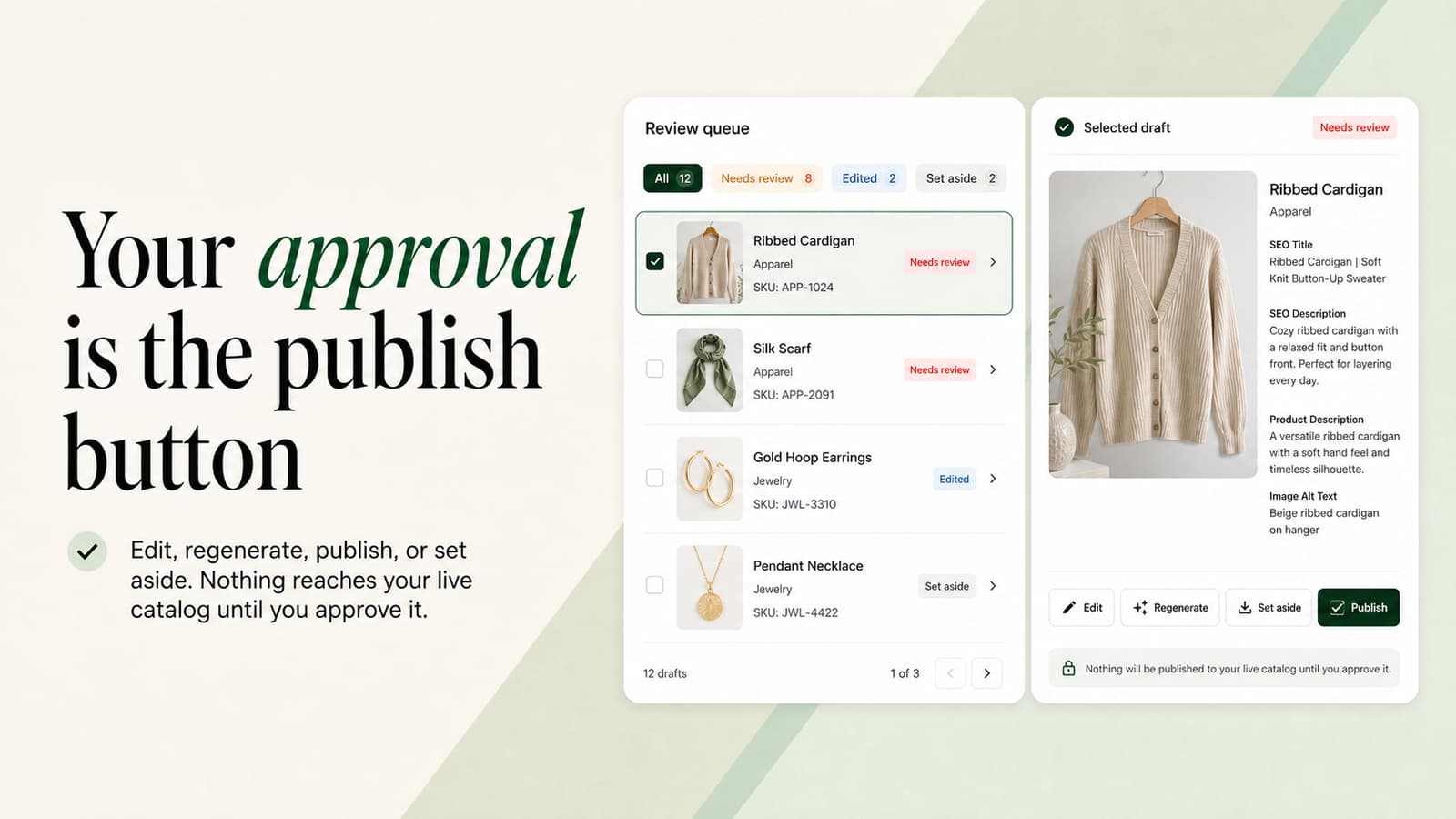
Read each draft beside the image and product record. Edit mistakes or leave uncertain drafts unpublished. Batches you start wait for your approval. Optional Maintain automation is off until enabled, then starts set to publish automatically; choose save as drafts if you want prior review. Plan batch sizes and available credits still apply.
5. Verify fixes and repeat deliberately
Publishing is one step in an audit. Confirm the saved field and the storefront output before closing a finding.
Check the actual result
Reopen the matching Shopify image and confirm its saved alt text. Check the live product page, including gallery images and relevant mobile layouts. Theme or app behavior can affect the rendered markup. Re-run the single-page checker for missing attributes, then manually inspect whether the text communicates the image purpose. A nonempty field alone is not a quality pass.
Keep a bounded record
Record checked URLs, approved changes, exceptions, and the next review date in your own work log. Paid offers include completed alt-text fix exports; these document work rather than certify compliance. Revisit newly added products and images. Use the accessibility scanner and a broader manual review for issues beyond image descriptions.
Shopify image content questions
Can a missing-alt-text checker decide which images are decorative?
No. A checker can flag markup, but a person must decide what each image does in its page context. Decorative images may correctly use alt="".
Does fixing alt text guarantee accessibility or better rankings?
No. Useful alt text supports image understanding. Accessibility also involves navigation, controls, forms, media, and other content. Search performance depends on many factors, and neither a scan nor generated text guarantees an outcome.
How do I choose between manual edits and bulk drafts?
Manual edits suit a few unusual images. For a backlog with reliable product facts, select a small Lumi batch, review the results, and expand only after checking saved Shopify values and the storefront.
Explore shopify image content
Start with a page. Fix a reviewed batch.
Use the checker to find a starting point, or install Lumi to draft selected product-image updates inside Shopify. Review the exact images and publish only what is ready.